Make your first recording
Updated:
On this page
This article walks you through opening Goldtake for the first time and recording your first take.
Allow the camera and microphone
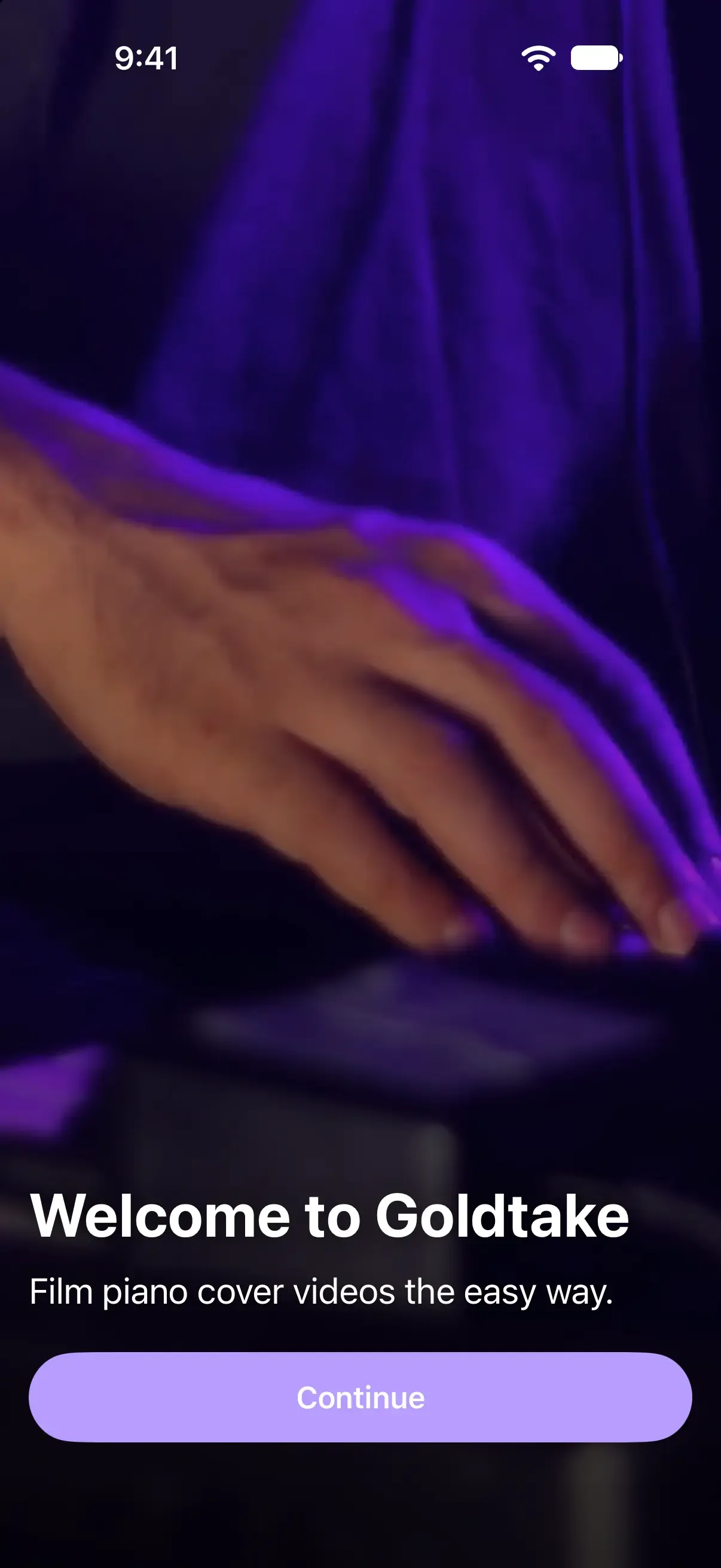
- Open Goldtake. The Welcome to Goldtake screen appears. Tap Continue.
- On the Camera and Microphone screen, tap Continue again.
- Allow camera access and microphone access when iOS asks. The capture screen opens.
If you didn’t allow one of them, see Recording won’t start.
Play and record
- Set up your iPhone and check the screen to see what will be recorded.
- If you use a MIDI keyboard, connect it over USB or Bluetooth. See Connect a MIDI keyboard. Without one, you can play the on-screen keyboard.
- Tap Start Recording. The elapsed time appears.
- When you finish playing, tap Stop Recording. After the take is saved, its thumbnail appears.
- Tap the thumbnail to open the Library and play back your take.
If you make a mistake, you can move to the next take without stopping. See Go to the next take, retake, and star takes.
Was this article helpful?
Choose a reason
Thank you for your feedback.
If you still need help, use the contact form.