Connect a MIDI keyboard
Updated:
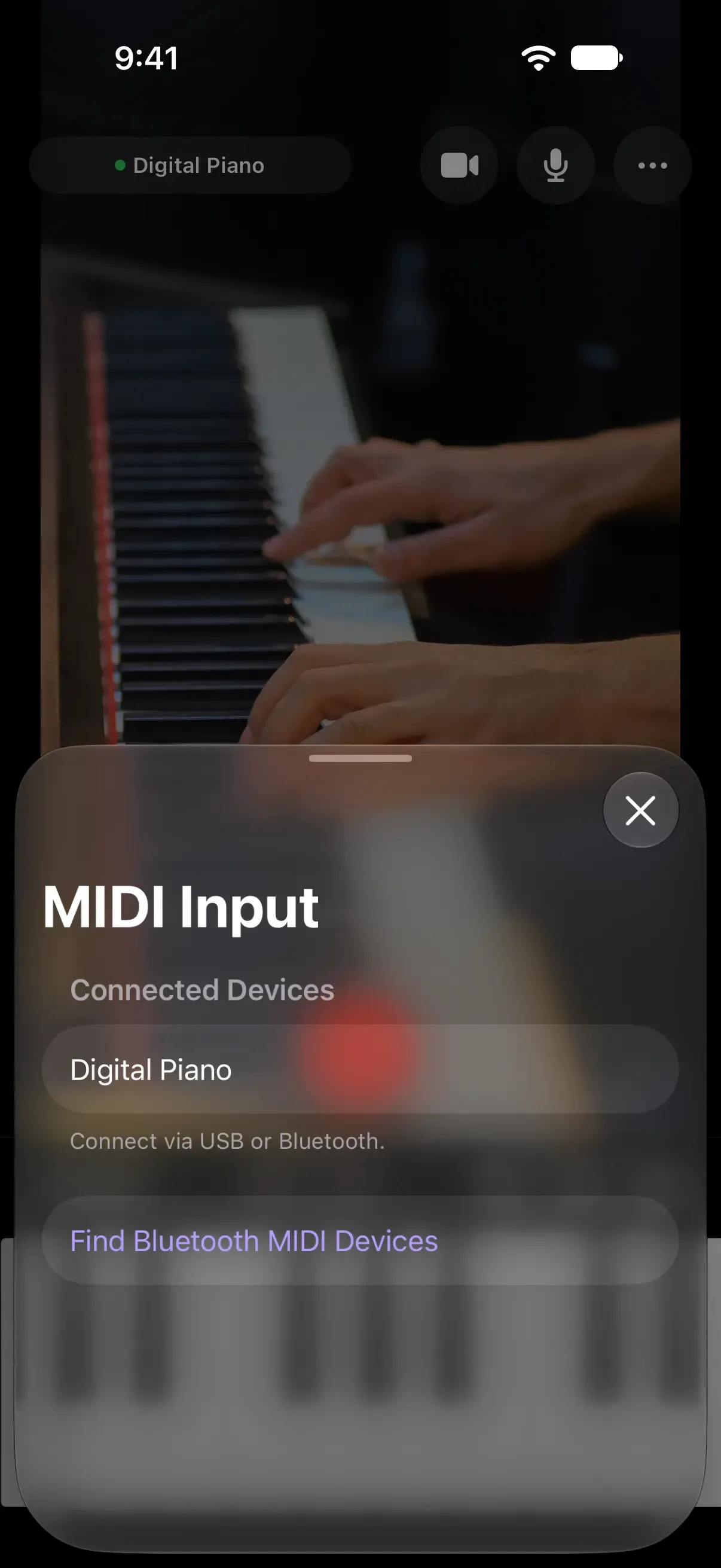
You can record your playing on a MIDI keyboard connected over USB or Bluetooth together with the video. Once it’s connected, the keyboard’s name appears.
Connect over USB
Connect the keyboard to your iPhone with a USB cable or adapter. When it connects, the connected keyboard’s name appears on the screen.
Connect over Bluetooth
- On the capture screen, tap the keyboard’s name, or MIDI Not Connected if nothing is connected. The MIDI Input screen opens.
- Tap Find Bluetooth MIDI Devices.
- Tap your keyboard in the list to connect. Put the keyboard in Bluetooth pairing mode first.
You can also open the same screen from MIDI Input in Settings.
Check that it’s working
On the capture screen, an activity indicator sits to the left of the keyboard’s name. It is dark green while the keyboard is connected and lights up bright green the moment you play. It is orange when nothing is connected. If it doesn’t light up when you play, see The MIDI keyboard isn’t picked up.
When several keyboards are connected, the capture screen shows the count, as in “Name +1”.
Was this article helpful?
Choose a reason
Thank you for your feedback.
If you still need help, use the contact form.