Play the on-screen keyboard
Updated:
On this page
Without a MIDI keyboard, you can record by playing the keyboard on the capture screen with your fingers.
Show or close the keyboard
If the keyboard isn’t shown, tap More and turn on Show Keyboard. To close it, tap Close Keyboard. After you close it, a Show Keyboard button appears on the screen to bring it back.
Move the keyboard’s display position
Use One Octave Left and One Octave Right to move the keyboard’s display position one octave at a time. Each tap on the Control Mode button switches between Perform and Scroll. In Scroll, you can move the keyboard by swiping sideways. Switch back to Perform and keys sound as you drag your finger across them.
Hold Sustain to sustain the notes you play, as with a sustain pedal.
Change the keyboard height
Drag up or down near the top edge of the keyboard to change its height.
Change how it looks
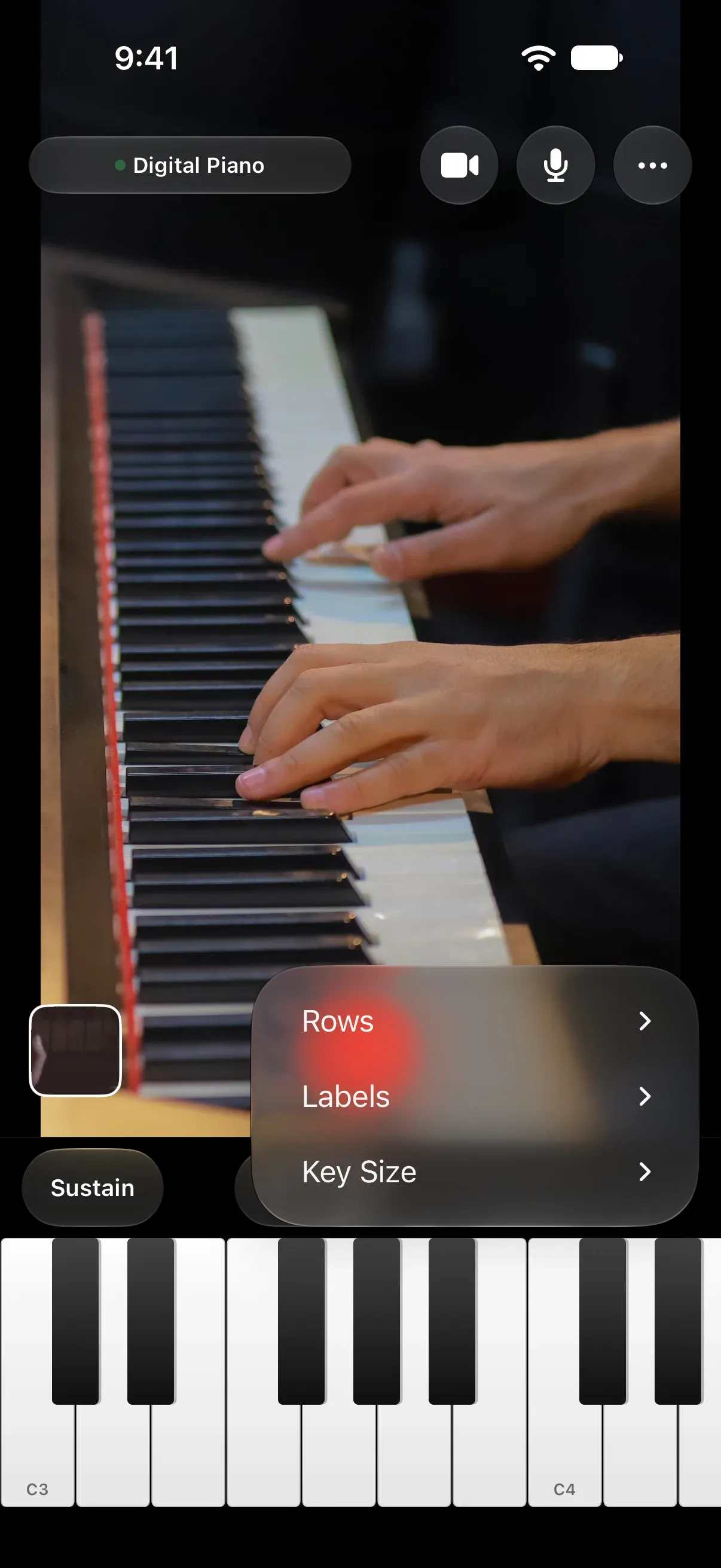
The Keyboard Display menu has these options.
- Key Size: Small, Medium, Large
- Labels: C Only, All, None. This sets which keys show note names.
- Rows: 1 Row, 2 Rows
Was this article helpful?
Choose a reason
Thank you for your feedback.
If you still need help, use the contact form.