Control recording with a pedal
Updated:
Press a pedal to run Next Take, Retake, or Stop Recording while you record, without taking your hands off the keys. Pedal controls work only while you’re recording.
Turn on pedal controls
- On the capture screen, tap More and open Settings.
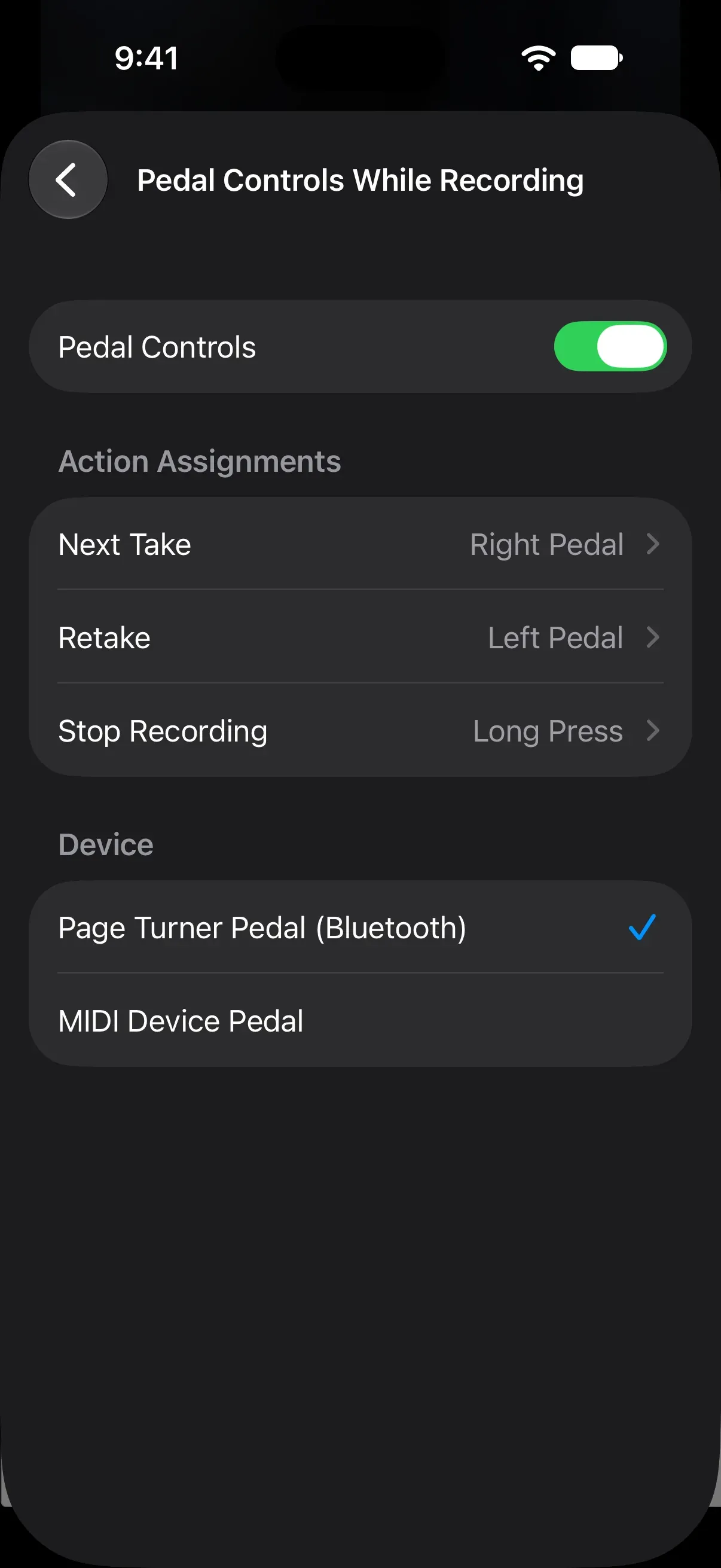
- Tap Pedal Controls While Recording.
- Turn on Pedal Controls.
- Under Device, choose Page Turner Pedal (Bluetooth) or MIDI Device Pedal.
Connect a page-turner pedal to your iPhone over Bluetooth. If you choose MIDI Device Pedal, the pedals on your MIDI keyboard are used. The right pedal is the sustain pedal, and the left pedal is the soft pedal.
Assign pedal presses
Action Assignments lists the three actions a pedal can run. You can assign an action to each pedal. The defaults are:
| Pedal | Default action |
|---|---|
| Right Pedal | Next Take |
| Left Pedal | Retake |
| Long Press | Stop Recording |
- Tap the action whose press you want to change.
- Tap Right Pedal, Left Pedal, Long Press, or None.
You can also tap Press Pedal to Register and press a pedal to assign that pedal to the action.
The presses work like this.
- Right Pedal, Left Pedal: Press that pedal and release it right away.
- Long Press: Hold either pedal for 0.6 seconds or longer, then release it.
If you assign the same pedal press to two actions, only the first one that matches runs, in the order Next Take, Retake, Stop Recording.
Page-turner pedal keys
Page-turner pedals that are recognized as a Bluetooth keyboard are also supported. Of the keys the pedal sends, the right arrow, down arrow, Page Down, and space keys are treated as the right pedal. The left arrow, up arrow, and Page Up keys are treated as the left pedal.
Was this article helpful?
Choose a reason
Thank you for your feedback.
If you still need help, use the contact form.