Create a floor plan
Updated:
Use Madori Walk to create a floor plan. You can edit the layout and size of each room.
The initial plan contains a living room 5.0 m wide and 4.0 m deep, and a bedroom 4.0 m wide and 3.5 m deep. No account registration is needed.
- Open the app. A drawing of the rooms appears in the Floor Plan window.
- Tap Add Room in the bottom toolbar. A room 4.0 m wide and 3.0 m deep is added to the right of the selected room.
- Drag the new room to where you want it. If it would overlap another room, it stops where its edge meets the neighboring room’s edge.
- With the room selected, drag a round handle on any of its four edges. Its size changes, along with the dimensions and area shown inside it.
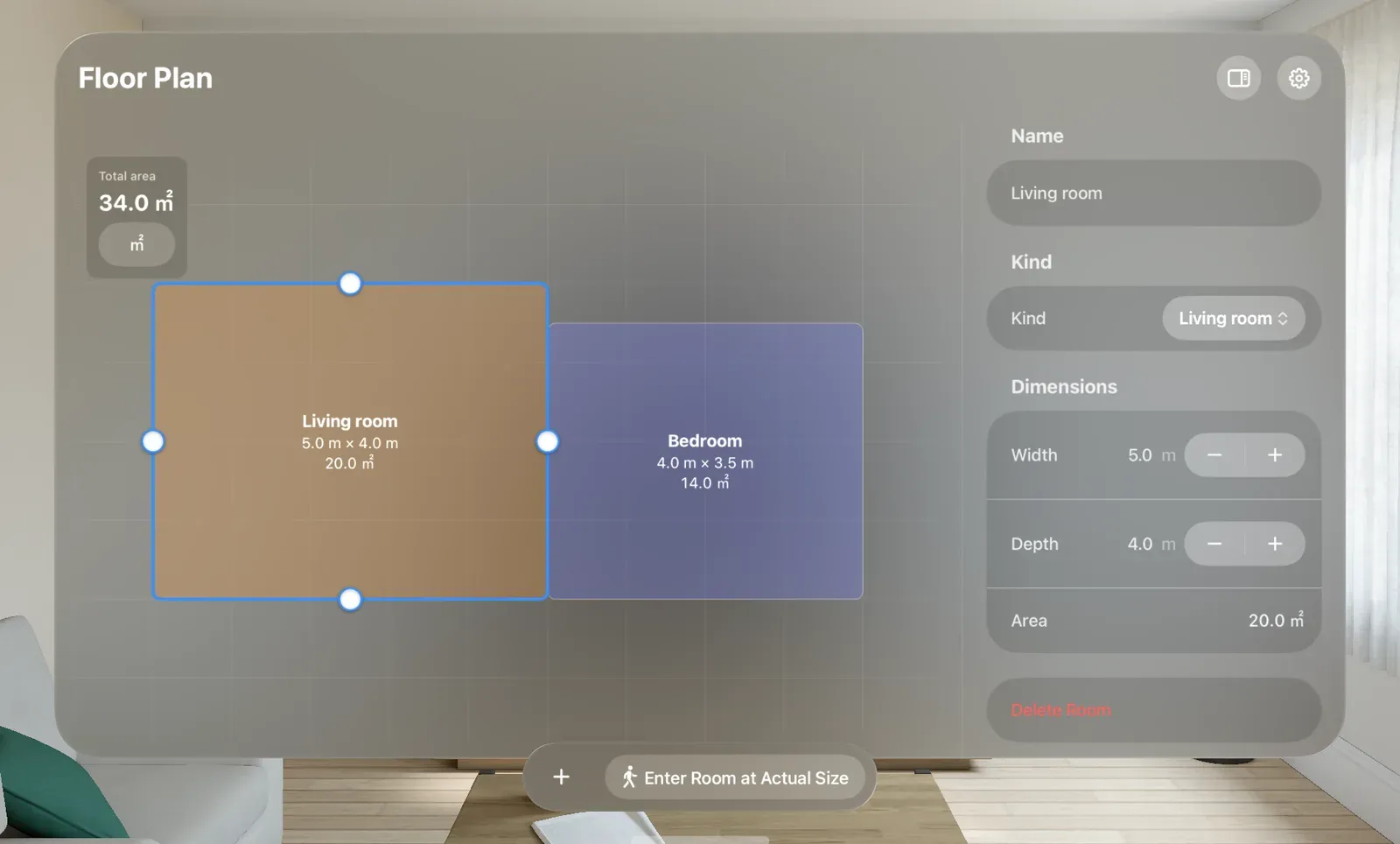
- Find Total area at the top left. It shows the sum of all room areas.
Each room displays its name, width, depth, and area. Changes save automatically, so no manual save is needed.
If you can’t move a room where you want it, see A room snaps to a neighboring edge when moved. If you can’t enlarge or shrink a room, see Can’t resize a room, or entered dimensions change. When your plan is ready, Enter a room at actual size to experience its space.
Was this article helpful?
Choose a reason
Thank you for your feedback.
If you still need help, use the contact form.