Understand the Floor Plan, Model, and room views
Updated:
On this page
This article explains how to read the Madori Walk screens. Madori Walk has four views: the floor plan, a model, the actual-size space, and the In the Room controls.
Edit the floor plan
The window that opens at launch is titled Floor Plan. Rooms appear as rectangular tiles. Add rooms, move them, and change their sizes here.
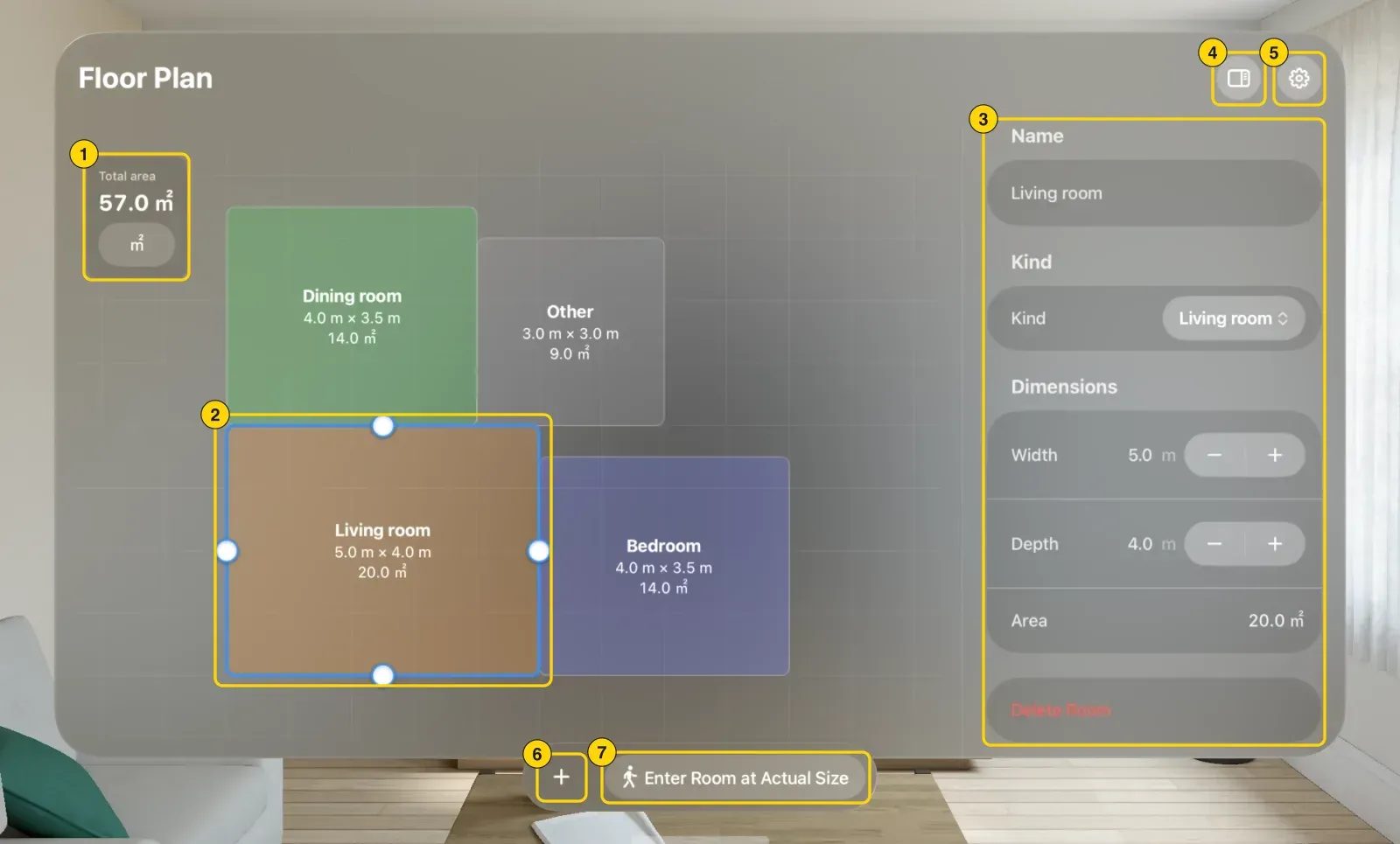
- Total area: The sum of all room areas. Tap the unit symbol below it, such as m², to choose an area unit.
- Room tiles: Each room’s name, width × depth, and area. The selected room has a thicker border and handles on its four edges.
- Inspector: View and edit the selected room’s name, kind, dimensions, and area.
- Inspector button: Show or hide the inspector.
- Settings button: Change units and open app information.
- Add Room: Add a room.
- Enter Room at Actual Size: Open the actual-size space.
Small room tiles may not display names or dimensions. Handles and borders remain usable even when small.
View the model
This window shows the floor plan as a tabletop-size 3D model. Tap rooms to select them and drag to move them. For details, see View your floor plan as a model.
Walk through the actual-size space
Tap Enter Room at Actual Size to open this space. Walk through rooms with floors, walls, ceilings, windows, and furniture at actual size.
Use the In the Room controls
When you open the actual-size space, a separate window titled In the Room opens near you. Use it to switch rooms and toggle display options such as the grid. For details, see Switch rooms and change the display in the In the Room window.
Was this article helpful?
Choose a reason
Thank you for your feedback.
If you still need help, use the contact form.