Enter a room at actual size
Updated:
Display your floor plan at actual size on the floor and walk around to get a sense of its space. You start at the center of the selected room.
Use an open area and make sure there are no objects underfoot. The actual-size space is fully immersive, so you won’t see your surroundings. The first time you open it, the app asks permission to use information about your surroundings. It uses this information to detect the floor and place the floor plan on your real floor.
- Tap the room you want to enter in the Floor Plan window.
- Tap Enter Room at Actual Size in the bottom toolbar. The button changes to Opening… and the actual-size space opens. The Floor Plan window stays open.
- Once the room appears on the floor, look around. Walls, the ceiling, windows, and furniture appear at actual size.
- Walk around to get a sense of the room’s space.
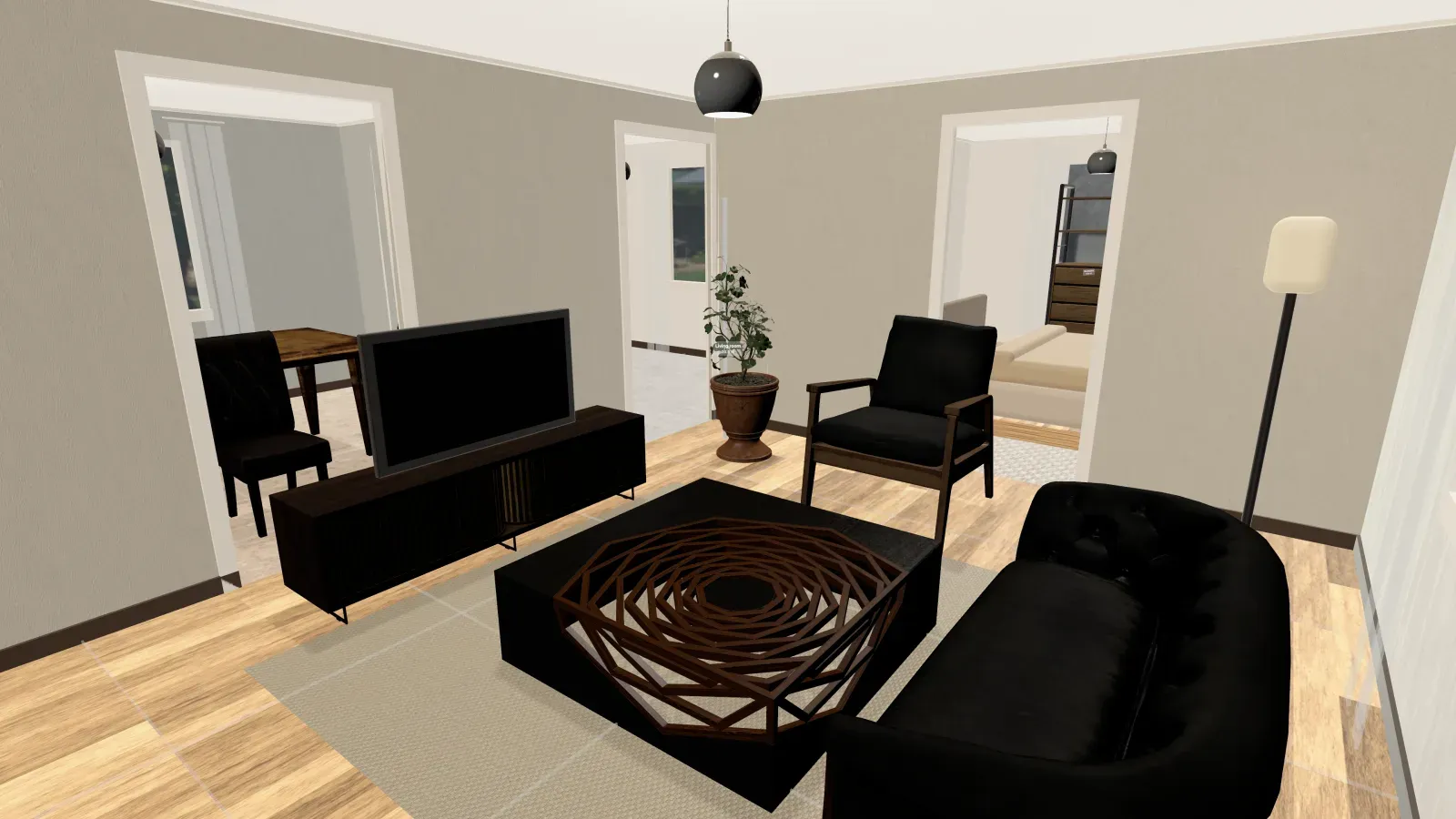
- To return, tap Back to Floor Plan in the In the Room window near you. You return to the Floor Plan window.
The floor and walls appear with labels for room names and areas. The selected room also has a 1 m² guide tile, a height guide, and a ceiling height label. The ceiling height is fixed at 2.4 m, and the height guide is fixed at 1.7 m.
If the actual-size space won’t open, see Can’t enter a room at actual size. If the room doesn’t align with the floor, see The room doesn’t line up with the floor. To walk into another room, see Switch rooms and change the display in the In the Room window.
Was this article helpful?
Choose a reason
Thank you for your feedback.
If you still need help, use the contact form.