Resize a room
Updated:
Change a room’s width and depth by dragging handles or entering numbers in the inspector. The room area and total area update with the change.
Drag a handle to resize
Width and depth can each range from 1.5 m to 15 m. Values outside that range are set to the nearest limit. If you use feet and inches, see Change area and length units.
- Tap the room you want to resize in the Floor Plan window. Round handles appear at the center of its four edges.
- Pinch the handle on the edge you want to expand, then drag it outward. Drag inward to shrink the room.
- Release your fingers to set the size.
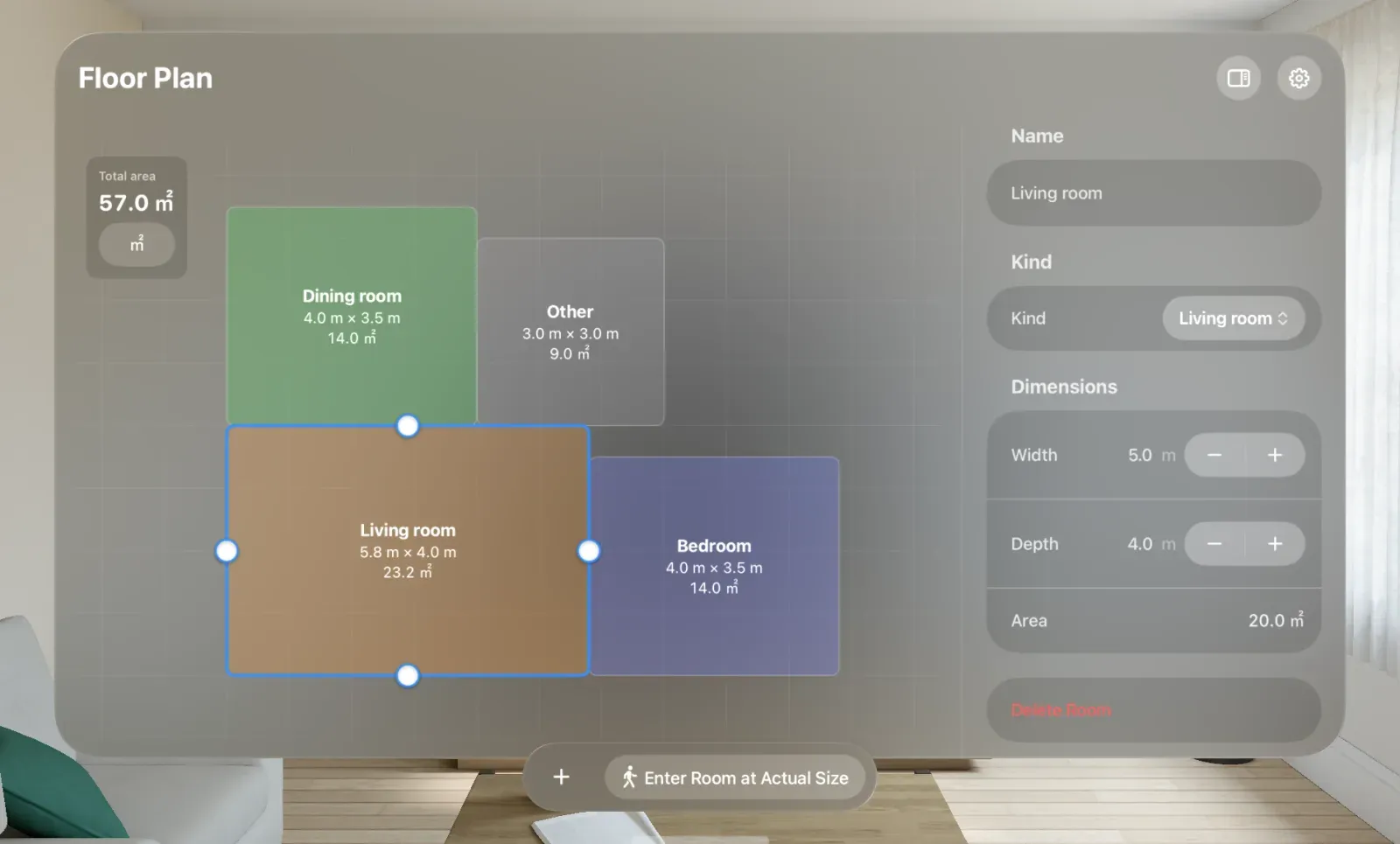
If another room is beyond the expanding edge, it is pushed away. See Why do neighboring rooms move when I enlarge a room? for how this works. If you can’t enlarge or shrink a room, see Can’t resize a room, or entered dimensions change.
Enter dimensions in the inspector
- Select a room and open the inspector on the right. If it’s hidden, tap Inspector at the top.
- Enter a Width or Depth under Dimensions. The stepper on the right changes the value by 0.5 m when using meters, or by 6 inches when using feet and inches.
- Use the keyboard’s Return key to confirm the number. The room size and Area below update. The new width and depth appear on the room tile and under Dimensions in the inspector.
Changing width moves the right edge; changing depth moves the upper edge in the drawing. Use handles to move the left or front edge.
Entered values align to 0.1 m increments, so a precise value such as 4.55 m changes to a nearby value. An edge within 0.2 m of another room’s edge aligns with it.
Was this article helpful?
Choose a reason
Thank you for your feedback.
If you still need help, use the contact form.