Add a room
Updated:
On this page
When you add a room, the new room is placed to the right of the selected room.
Add a room
If no room is selected, it goes at the far right of the whole plan, at the frontmost position. Select a room near the intended location first to reduce repositioning.
- In the Floor Plan window, tap the room you want to add a room beside.
- Tap Add Room in the bottom toolbar. The new room appears in the drawing and is selected.
- Change its name, kind, and size as needed. See Change a room’s name and kind for names and kinds, and Resize a room for sizes.
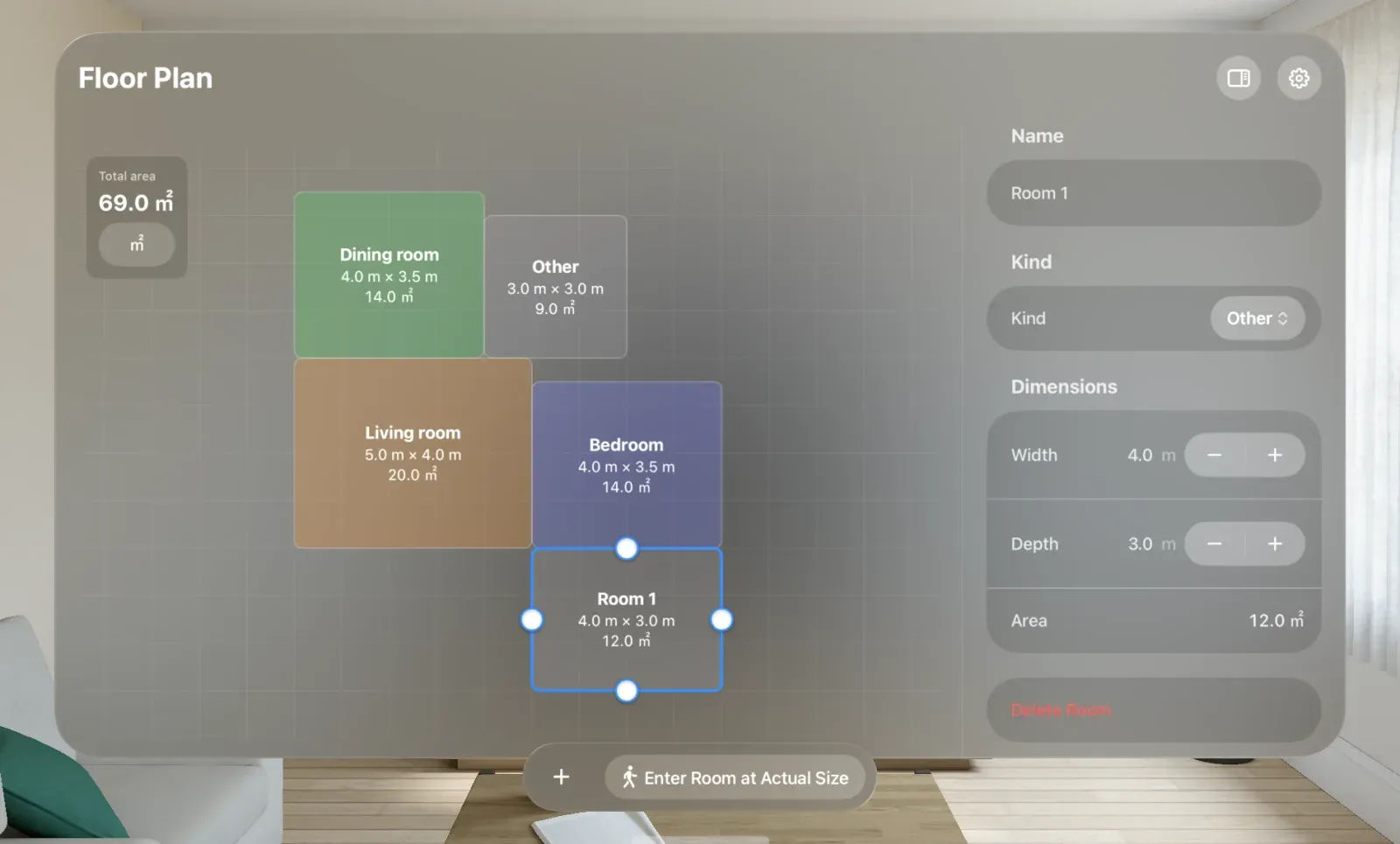
New rooms have numbered names such as Room 1. Their kind is Other. In the inspector’s Dimensions, the width is 4.0 and depth is 3.0 when using meters.
Change the placement
If another room occupies the intended position, the new room is placed in a nearby open position with its edge touching a neighboring room. Drag the room to move it after adding it.
You can also move rooms to positions that aren’t adjacent, such as beyond the far right of the plan. Detached rooms, such as outbuildings or garages away from the main building, work too. If you can’t move a room where you want it, see A room snaps to a neighboring edge when moved. To experience the plan at actual size after adding rooms, see Enter a room at actual size.
Was this article helpful?
Choose a reason
Thank you for your feedback.
If you still need help, use the contact form.