Gather matching items with Smart Collections
Updated:
On this page
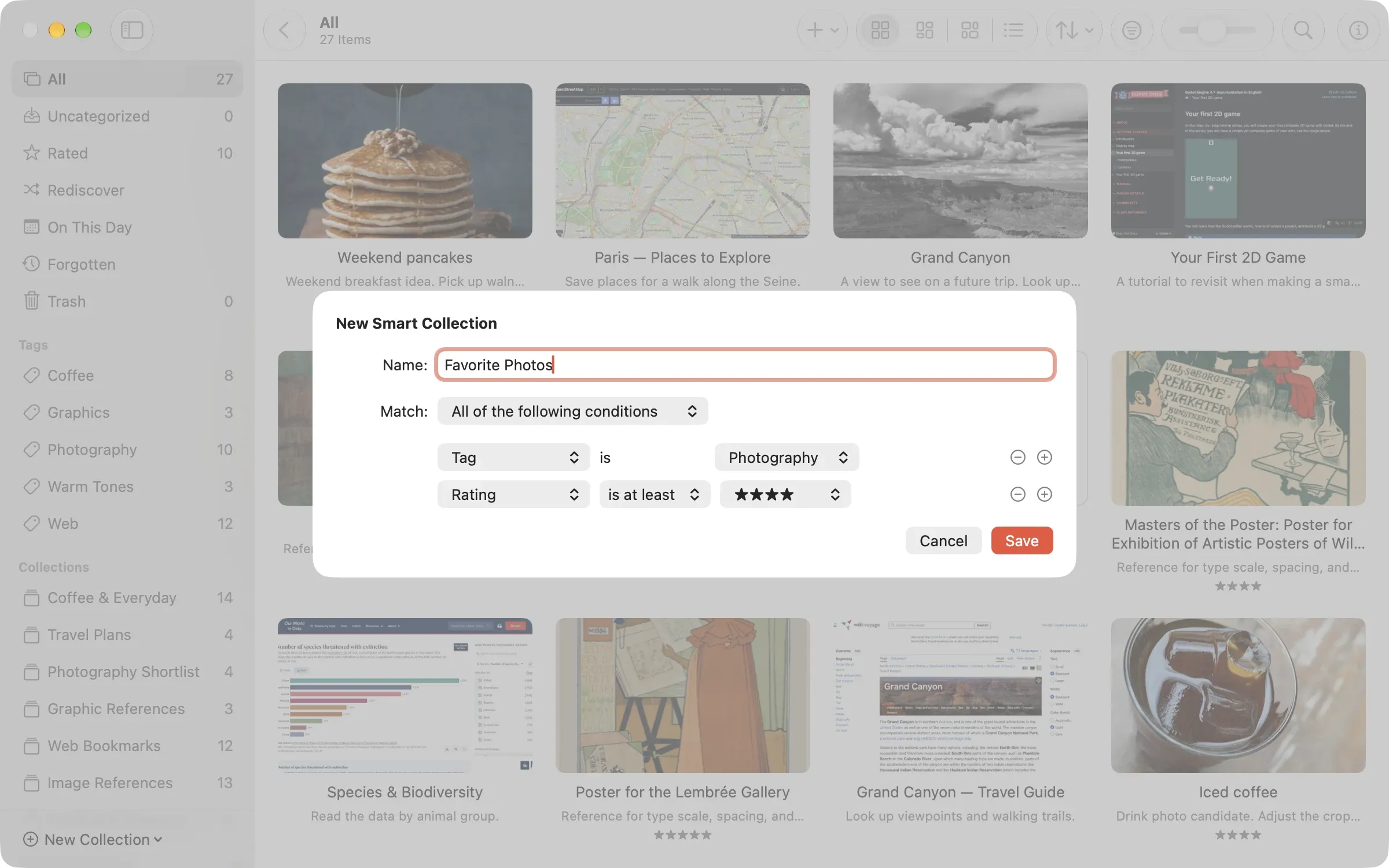
A Smart Collection saves rules such as “Tag is Photography” or “Rating is at least four stars”, and lists the items that match. Items you add later join it when they match.
Create a Smart Collection
- Choose Organize > New Smart Collection. The New Smart Collection window opens.
- Enter a name in Name:.
- In Match:, choose All of the following conditions or Any of the following conditions.
- In a condition row, choose the type of condition and its value. Click Add Condition to add a row, or Remove Condition to remove one.
- Click Save. The Smart Collection appears under Smart Collections in the sidebar.
This example is named “Favorite Photos” and uses two conditions: Tag is Photography, and Rating is at least four stars.
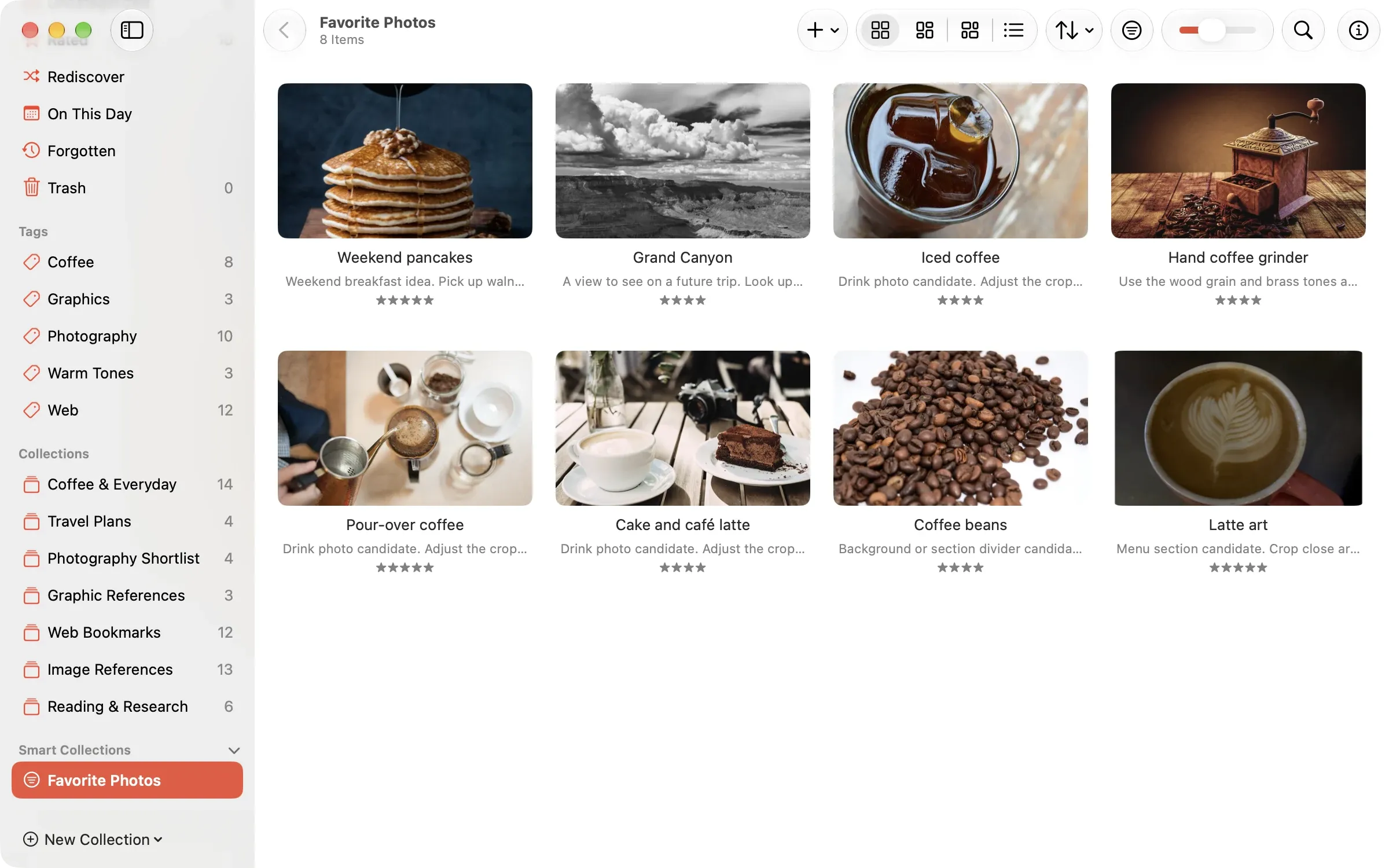
After you save, “Favorite Photos” appears in the sidebar, and the eight items that match the conditions are listed.
These conditions are available:
| Condition | What you set |
|---|---|
| Kind | Image, document, note, web link, or video |
| Color | The main color of an image: red, orange, yellow, green, cyan, blue, purple, pink, black, white, or gray |
| Tag | Whether an item has the tag you pick |
| Collection | Whether an item is in the collection you pick |
| Name | Whether the name contains the text you enter |
| Date Created, Date Modified | After or before a date |
| Rating | Equal to, at least, or at most a number of stars. Unrated can also be chosen. |
URL, notes, and article text can’t be used as conditions. Items in the Trash don’t appear even if they match.
Save a filter as a Smart Collection
You can turn a filter into a Smart Collection. Set up conditions in the filter bar, then click Save as Smart Collection…. For the filter bar, see Find items with search and filters.
Change or delete a Smart Collection
To change the rules, select the Smart Collection in the sidebar and choose Organize > Edit Smart Collection…. To delete it, choose Organize > Delete Smart Collection. Deleting the saved rules doesn’t delete the items that matched.
Was this article helpful?
Choose a reason
Thank you for your feedback.
If you still need help, use the contact form.