Switch rooms and change the display in the In the Room window
Updated:
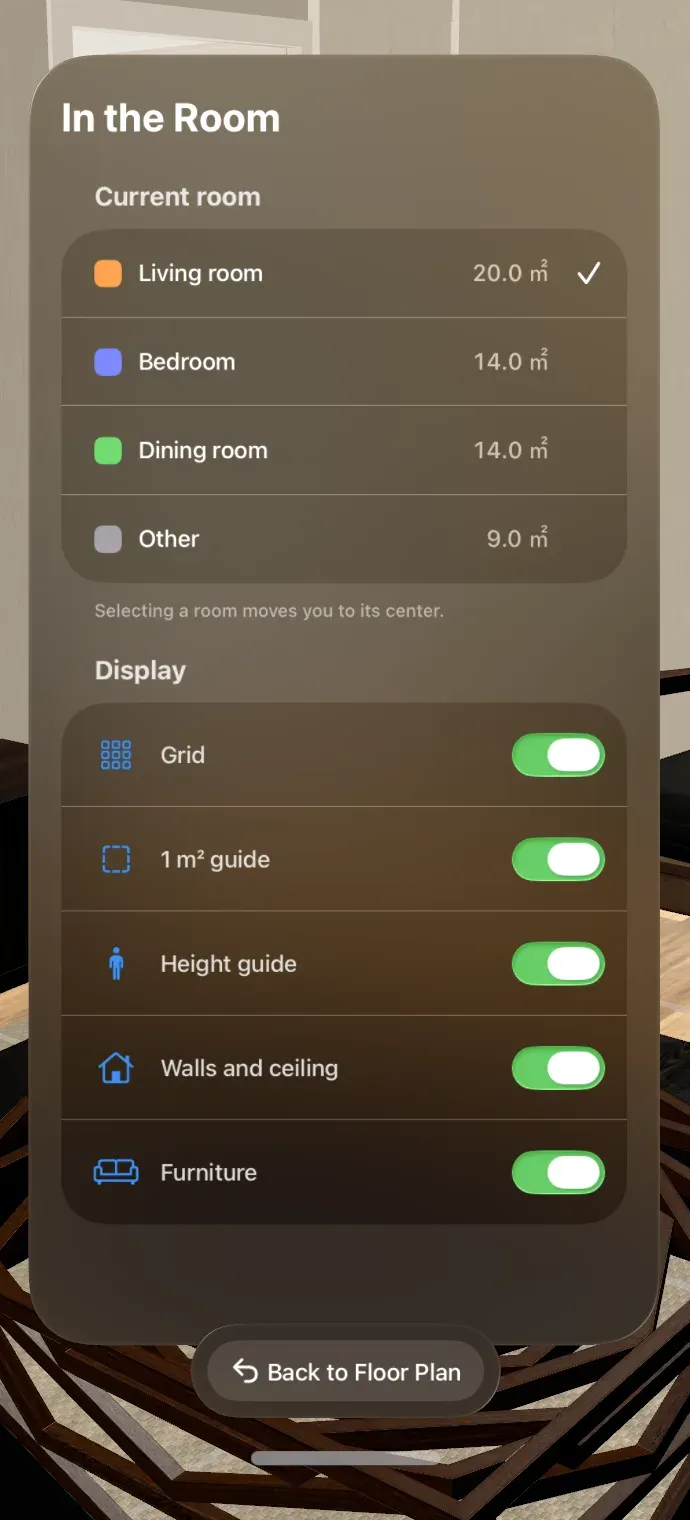
Opening the actual-size space also opens the In the Room window near you. Use it to switch rooms and show or hide the floor grid, walls, and furniture.
Move to another room
Open the actual-size space using Enter a room at actual size. You can move between rooms in two ways.
- Walk to another room: Walk through the doorway where two rooms meet. When you enter the next room, it becomes the Current room. The floor doesn’t move.
- Select a room in the window: In the In the Room window, tap a room in the Current room list. The plan is repositioned so you stand at the center of the selected room. The area appears to the right of each room’s name. The room you chose is selected in the Current room list.
If the floor doesn’t align after switching rooms, see The room doesn’t line up with the floor.
Change display options
Turn switches on or off under Display in the In the Room window. The room’s appearance changes immediately.
| Option | What it shows |
|---|---|
| Grid | A grid on the floor. |
| 1 m² guide | A tile with 1 m sides and a 1 m² label on the selected room’s floor to help you judge area. |
| Height guide | A 1.7 m height guide in the selected room. |
| Walls and ceiling | Walls and the ceiling. A label shows the ceiling height of 2.4 m. |
| Furniture | Furniture for the room’s kind. |
All switches are on by default. The 1 m² label always uses m², regardless of the area unit.
Return to the floor plan
Tap Back to Floor Plan. The actual-size space closes and you return to the Floor Plan window.
Was this article helpful?
Choose a reason
Thank you for your feedback.
If you still need help, use the contact form.