Change area and length units
Updated:
On this page
Choose from six area units and two length units. Your choices apply to the drawing, inspector, model, and actual-size rooms.
Change the area unit
Change the area unit in the Floor Plan window or in Settings.
- Under Total area at the top left of the Floor Plan window, tap the symbol below the number, such as m². The unit menu appears.
- Tap the unit you want. A checkmark marks the selected unit.
- Tap Settings at the top of the Floor Plan window.
- Tap Area Unit under Units and choose a unit.
- Tap Done.
Available area units are Square Meters, Square Feet, Square Yards, Tsubo, Jo (Tatami Mat), and Pyeong. For tatami mat and tsubo conversions, see Area unit conversions.
Change the length unit
- Tap Settings at the top of the Floor Plan window.
- Tap Length Unit under Units and choose Meters or Feet & Inches.
- Tap Done.
With Feet & Inches, room tiles and actual-size room labels use a format such as 16′ 5″. The inspector’s Width and Depth fields take decimal feet (ft).
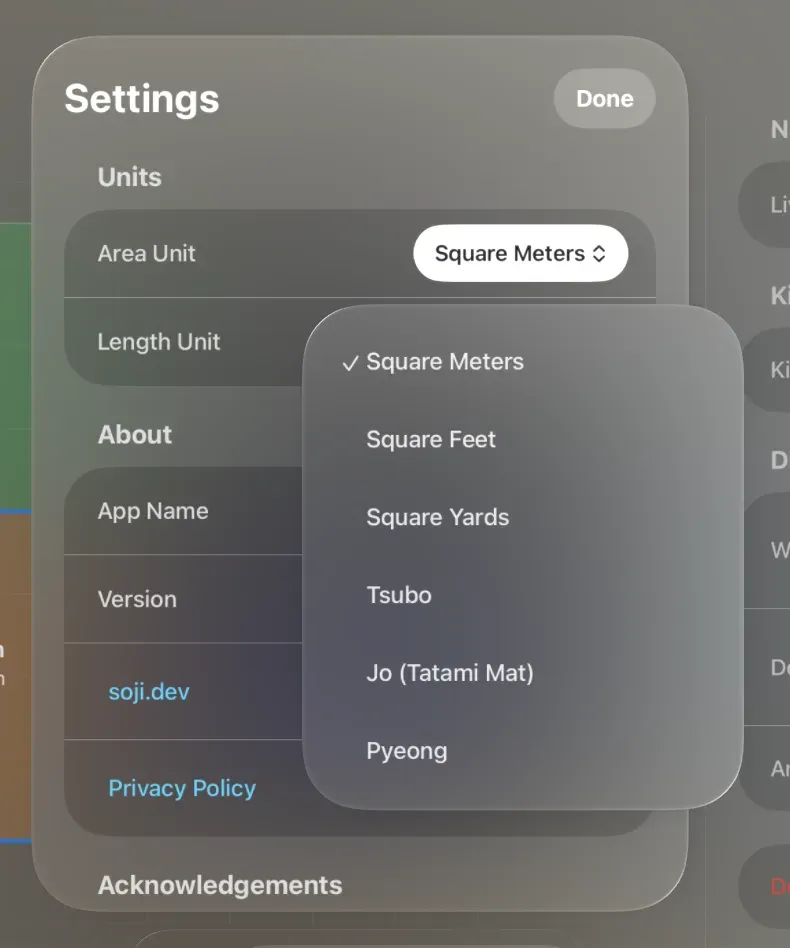
Total area and individual room areas use the numbers and symbols for your chosen unit. Your choices are saved for the next launch. If the display uses an unexpected unit, see Area or length units don’t look as expected.
Was this article helpful?
Choose a reason
Thank you for your feedback.
If you still need help, use the contact form.