View your floor plan as a model
Updated:
On this page
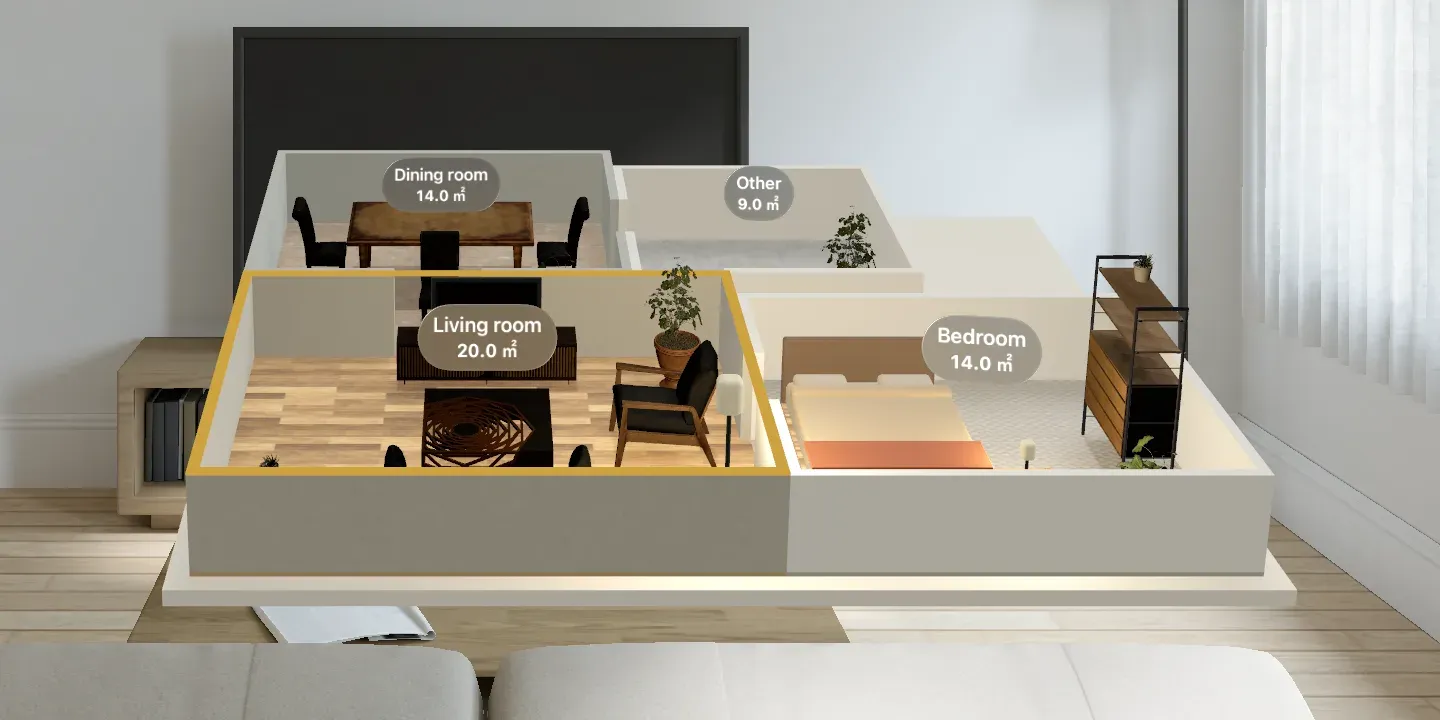
The Model window shows the entire floor plan as a tabletop-size 3D model. Tap rooms to select them, then pinch and drag to move them.
View the model
When you open the app, the model window opens to the right of the Floor Plan window. Rooms appear as 3D shapes with walls and floors. Labels with names and areas float above the rooms and turn to face your viewing direction.
Adding rooms or resizing them in the Floor Plan window also updates the model.
If you can’t find the Model window, quit and reopen the app. The Model window opens at launch.
Select and move rooms in the model
- Tap a room in the Model window. A yellow-orange border appears along the tops of its walls, and the same room is selected in the Floor Plan window.
- Pinch and drag the room. The room moves across the model with your hand.
- Release your fingers. The position is set, and the room appears in the same position in the Floor Plan window.
Rooms align under the same rules as in the Floor Plan window. For details, see Move and rearrange rooms. You can’t resize rooms in the model. Change their size in the Floor Plan window.
Was this article helpful?
Choose a reason
Thank you for your feedback.
If you still need help, use the contact form.