Move and rearrange rooms
Updated:
Drag a room tile to change its position. Its edges align automatically when you bring it close to another room.
Move a room
- In the Floor Plan window, pinch and drag the room tile. The room is selected automatically, and the tile follows your fingers.
- Release your fingers where you want to place it. The position is set, and changes save automatically.
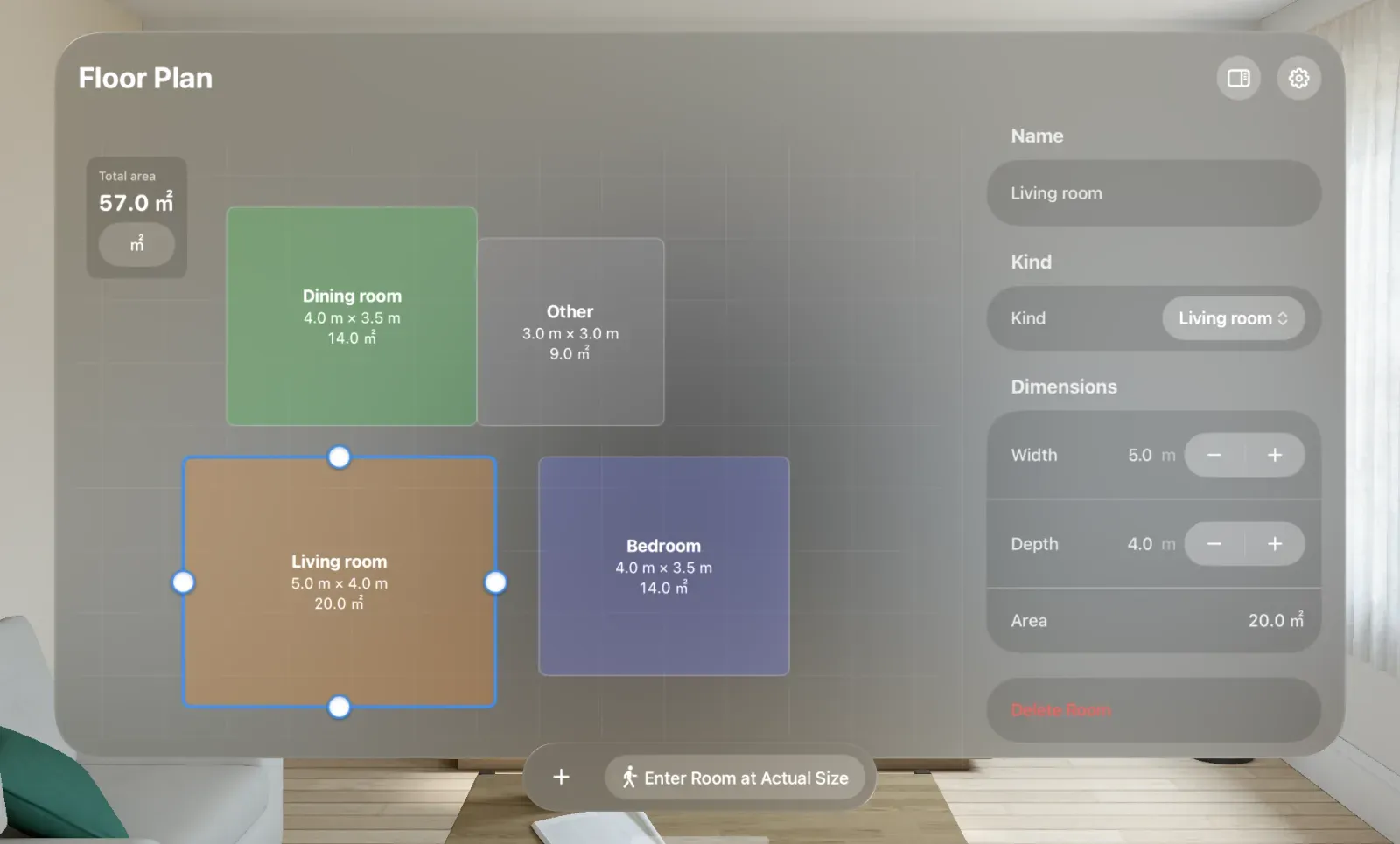
If the room doesn’t stay where you intended, see A room snaps to a neighboring edge when moved.
Understand automatic alignment
- Room positions align to 0.1 m increments.
- Bringing a room within 0.2 m of another room’s edge aligns their edges exactly.
- Releasing a room where it overlaps another places it at the nearest position where their edges meet.
- Rooms stay aligned with the drawing’s axes as they move. They can’t be rotated.
When edges meet, a doorway appears in the shared section. In the actual-size space, you can walk through it into the next room. For doorway conditions, see Can I place furniture, windows, or doors and create nonrectangular rooms?.
Move rooms in the model
You can also pinch and drag rooms in the Model window. Movement and alignment work the same way as in the Floor Plan window. For details, see View your floor plan as a model.
Was this article helpful?
Choose a reason
Thank you for your feedback.
If you still need help, use the contact form.