Create your first library
Updated:
On this page
You can add all kinds of items to your Crabwise library, such as blog posts, images, PDFs, videos, and screenshots. A Crabwise library is a folder in the file system. You don’t need an account to use Crabwise.
To create a library, you need to start the 30-day trial or buy Crabwise. If you haven’t started the trial, a purchase sheet appears before step 3. Click Start 30-day Trial to begin. For details, see How the 30-day trial and purchase work.
Create a library
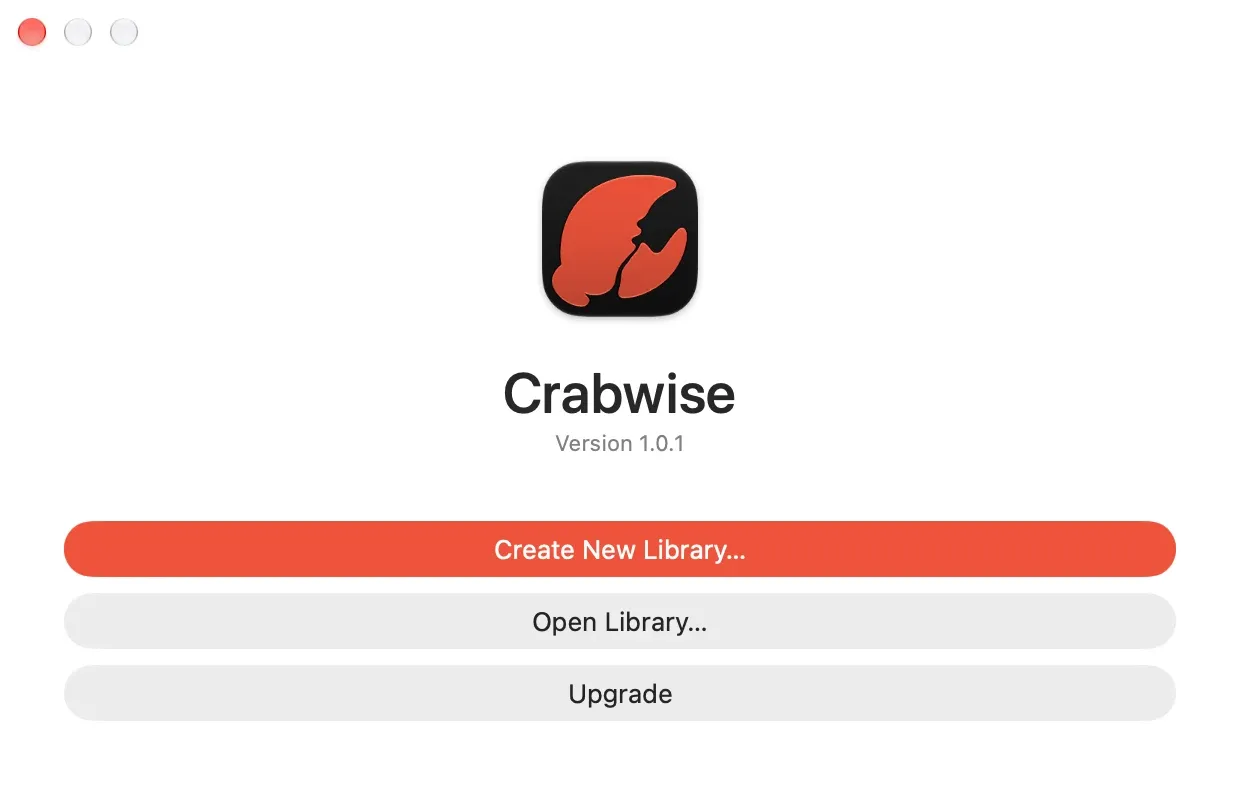
- Open Crabwise. The first time, an introduction sheet appears. Click Continue. The Welcome window appears.
- Click Create New Library…. The New Library window opens.
- Choose Start Empty, then click Continue…. To bring in bookmarks from another app, choose Import from Another App instead. For the steps, see Import from another app or folder.
- Enter a name in Library Name:, choose a location, and click Create. Crabwise creates the library folder there. The default name is “Crabwise Library”.
The library window opens.
Open a library again
When you open Crabwise, the library you used last opens automatically. To open a different library, choose File > Open Library… and select the library folder. You can also pick a library from File > Open Recent.
Only one library can be open at a time. Opening another library closes the one that is open.
To add your first item, see Add your first item.
Was this article helpful?
Choose a reason
Thank you for your feedback.
If you still need help, use the contact form.