A tour of the Crabwise window
Updated:
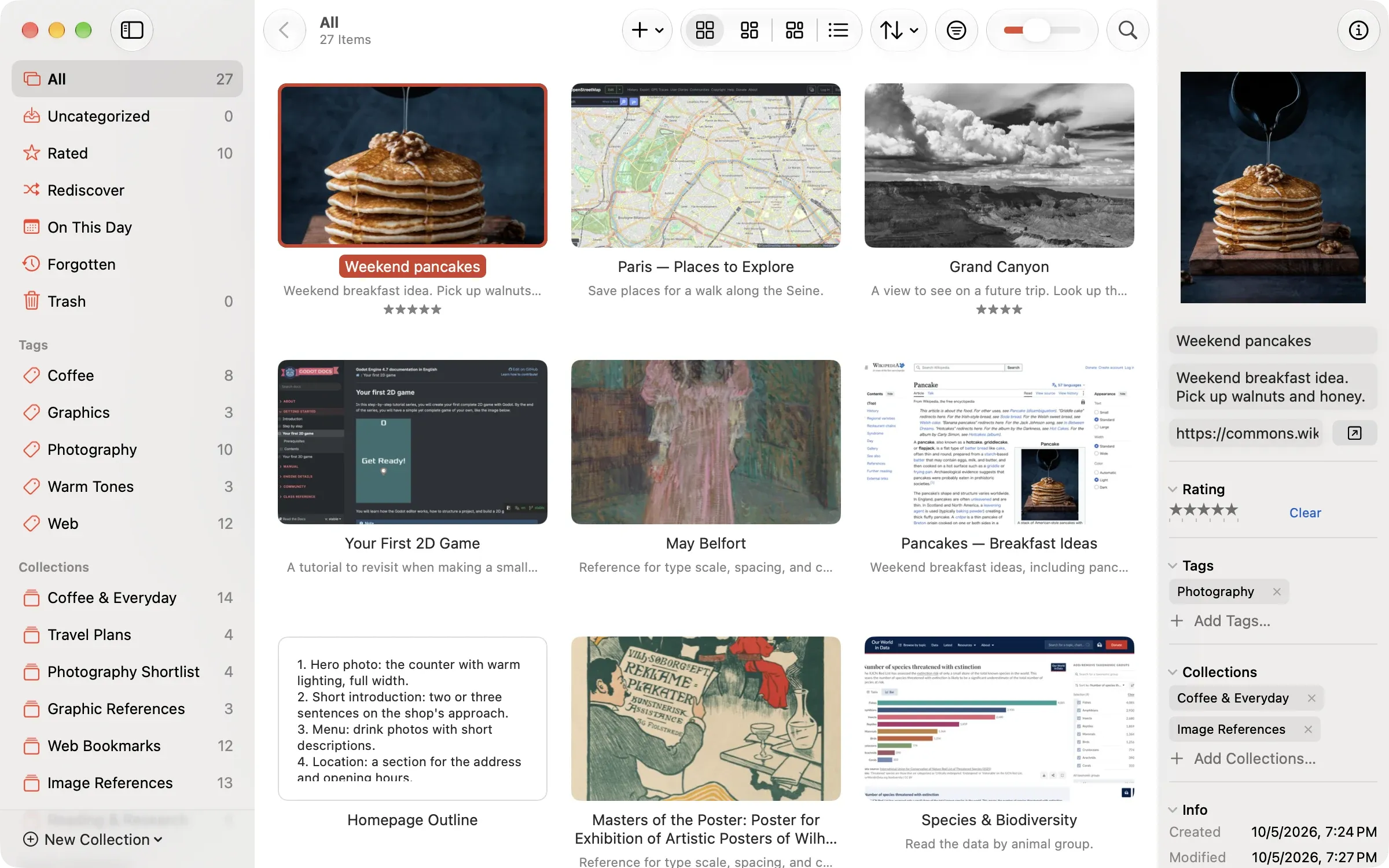
This article explains how to read the Crabwise screen. A Crabwise library window has three parts: the sidebar on the left, the list of items in the middle, and the inspector on the right.
Sidebar
| Entry | What it shows |
|---|---|
| All | Every item except those in the Trash |
| Uncategorized | Items that are in no tag and no collection |
| Rated | Items you gave a star rating |
| Rediscover | A screen that shows items you haven’t opened in a while, one at a time |
| On This Day | Items created on today’s month and day |
| Forgotten | Items you haven’t opened for a long time |
| Trash | Items you moved to the Trash |
| Conflicts | Items with a sync conflict. Appears only when there are any. |
| Each tag under Tags | Items with that tag |
| Each collection under Collections | Items in that collection |
| Each Smart Collection under Smart Collections | Items that match its rules |
Toolbar
The toolbar at the top of the window has controls to add items, switch the view mode, change the sort order, set the thumbnail size, filter, and search. Toggle Inspector at the right end shows or hides the inspector. Before you buy Crabwise, Upgrade also appears.
Inspector
When you select one item, the inspector shows its name, notes, URL, rating, tags, collections, and file information. To edit them, see Add notes and ratings.
Was this article helpful?
Choose a reason
Thank you for your feedback.
If you still need help, use the contact form.