Add your first item
Updated:
On this page
You can add a web page URL to your Crabwise library. To add an image or PDF, drag it into the window.
Open a library first. If you haven’t created one, see Create your first library.
Add a web page
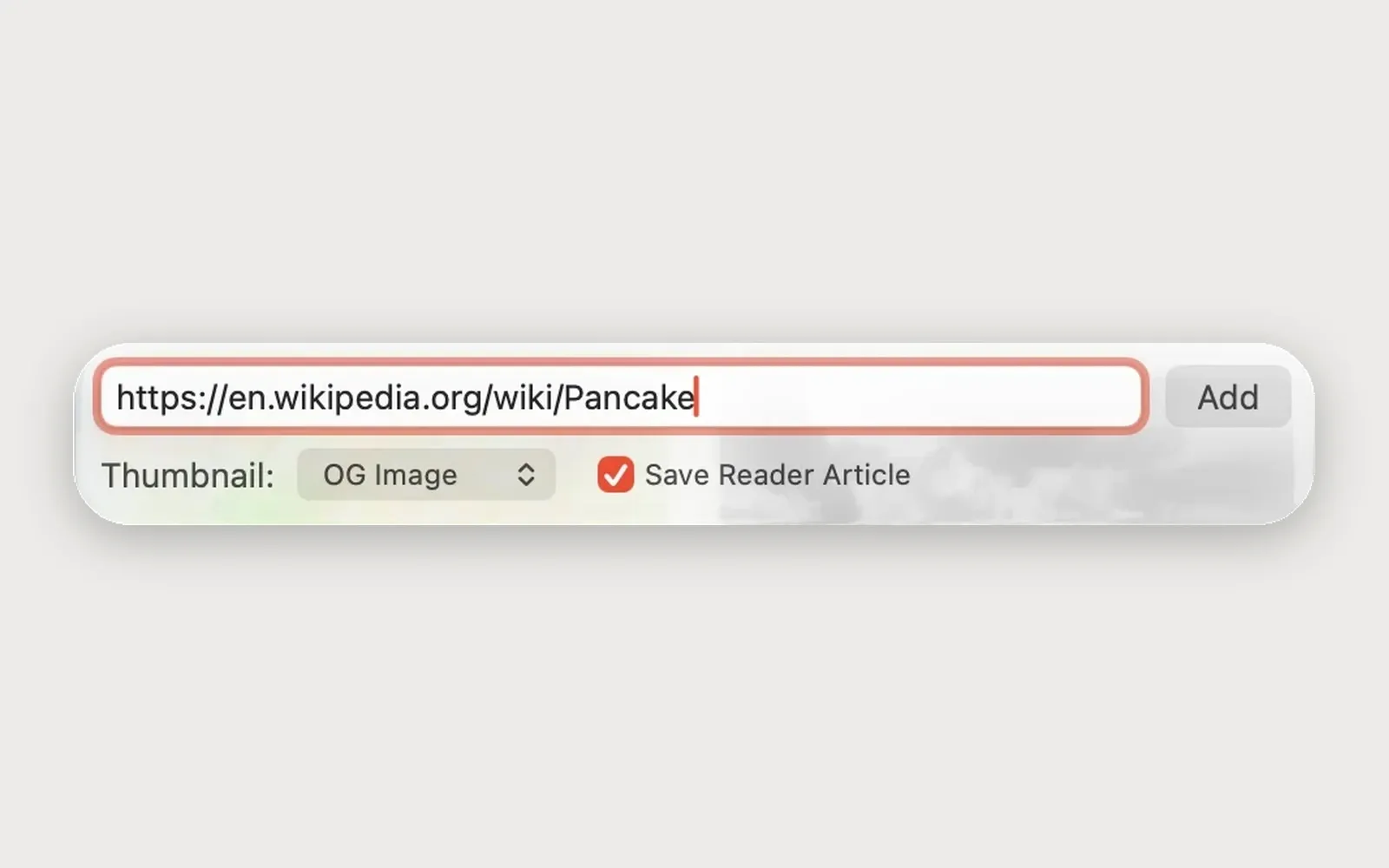
- Choose File > Add > Web Page. You can also choose Web Page from Add Item in the toolbar. The URL field appears.
- In the URL field, enter the address of the page. Use the full address, starting with https://.
- Click Add. The item is added to the library, and its thumbnail appears after a moment.
Add an image or PDF
Select an image or PDF in Finder and drag it into the Crabwise window. The file is added as an item.
If nothing is selected in the sidebar, new items go to Uncategorized. If you have a collection or tag selected, they go there.
For the options available when adding a web page, see Add a web link. To add from another app without switching to Crabwise, see Add from any app with Quick Capture.
Was this article helpful?
Choose a reason
Thank you for your feedback.
If you still need help, use the contact form.