Add from any app with Quick Capture
Updated:
While you work in another app, press a keyboard shortcut or click the menu bar icon to open the Quick Capture panel and add something. You don’t need to switch to the Crabwise window.
Quick Capture works while Crabwise is running and a library is open. If no library is open, a message asks you to open the library you want to add to.
Open the panel and add an item
- Press Control-Command-C. You can also click the Crabwise icon in the menu bar.
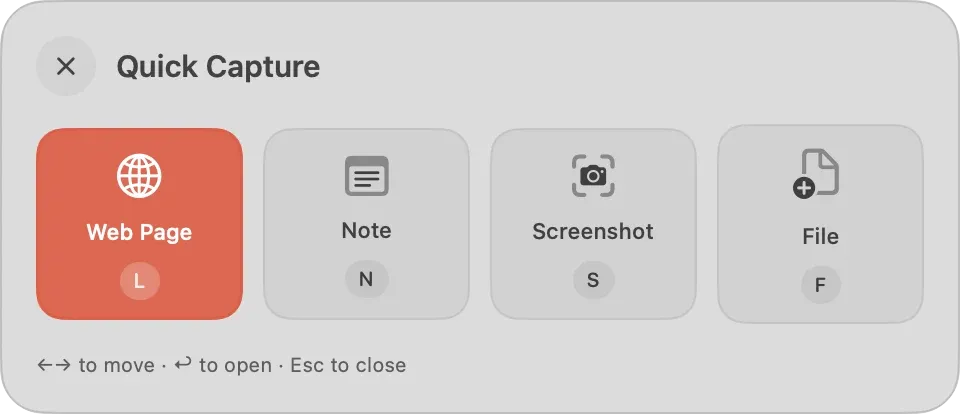
- Choose what to add: Web Page, Note, Screenshot, or File. The arrow keys and Return also work.
- On the screen you chose, enter the content or choose a file. For Web Page, a URL you copied earlier is already filled in. For Note, press Command-Return to add it.
- Click Add, or press Return. A notification says “Added to Crabwise”. If you haven’t allowed system notifications, an alert appears instead.
Press Esc to go back one screen. Press the shortcut again to close the panel.
After the trial ends, the panel still opens, but you can’t add anything. For details, see What happens when the trial ends.
Items added with Quick Capture go to Uncategorized, not into any collection or tag.
Change the shortcut
- Choose Crabwise > Settings….
- In General, under Quick Capture, click the shortcut field and press the new keys.
The shortcut works only while Crabwise is running. To keep it available after you restart your Mac, turn on Open at Login under Startup in the same General pane.
Was this article helpful?
Choose a reason
Thank you for your feedback.
If you still need help, use the contact form.