Take a screenshot and add it to your library
Updated:
Take a screenshot of part of the screen, a window, or the whole screen, and add it straight to your library. You don’t need to save a file in Finder first.
The first time you take a screenshot, macOS asks you to allow screen recording. For the steps, see You can’t take a screenshot.
Take a screenshot
- Open the library you want to add to.
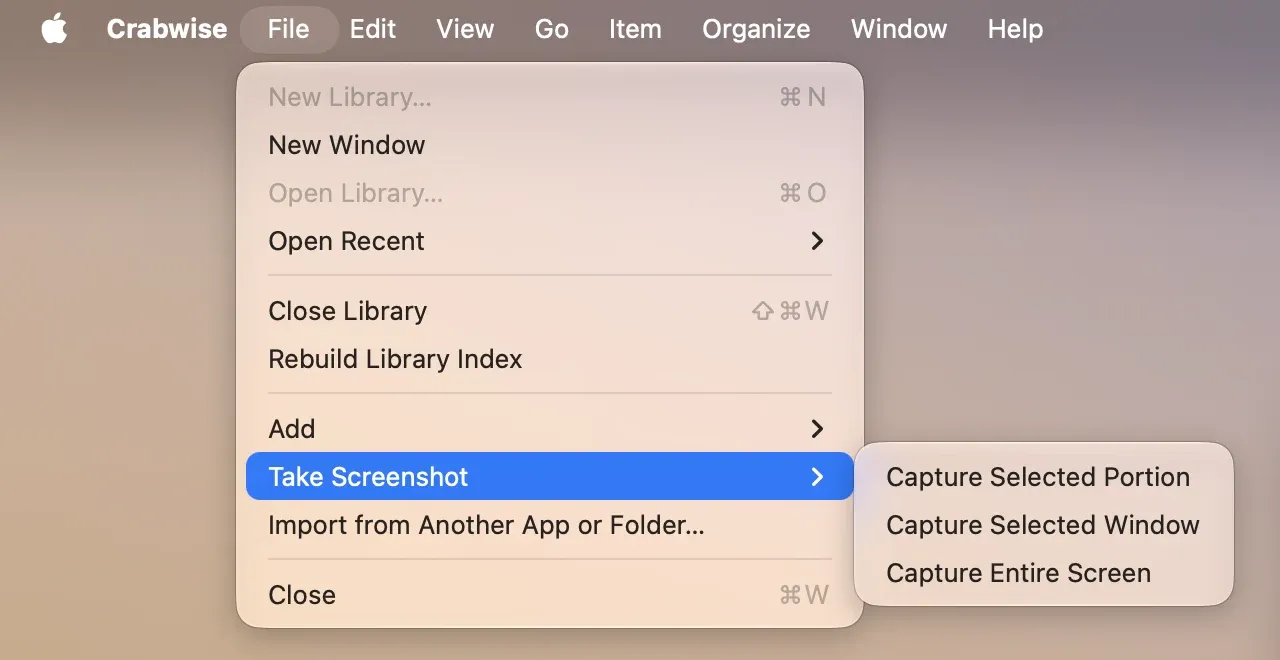
- Choose File > Take Screenshot, then choose what to capture: Capture Selected Portion, Capture Selected Window, or Capture Entire Screen.
- Follow the on-screen instructions to choose the area or window. The image is added as an item.
You can also right-click the Crabwise icon in the menu bar (or Control-click it) to get the same three choices. The Quick Capture panel offers Screenshot as well.
If you cancel, nothing is added.
Screenshots always go to Uncategorized. The item is named like “Screenshot 2026-10-30 14.05.33”: “Screenshot” followed by the date and time you took it. To put it in a tag or collection, organize it afterward.
Was this article helpful?
Choose a reason
Thank you for your feedback.
If you still need help, use the contact form.